How to solve SED problem in 2,5" WD drives
Posted: 28.05.15, 19:36
We have already changed the connection type from USB to SATA (using a compatible SATA PCB or SATA adapter), but when we start Marvell utility we see SED locked error.
1. Start the drive in Kernel mode: head isolation with connected spindle contacts
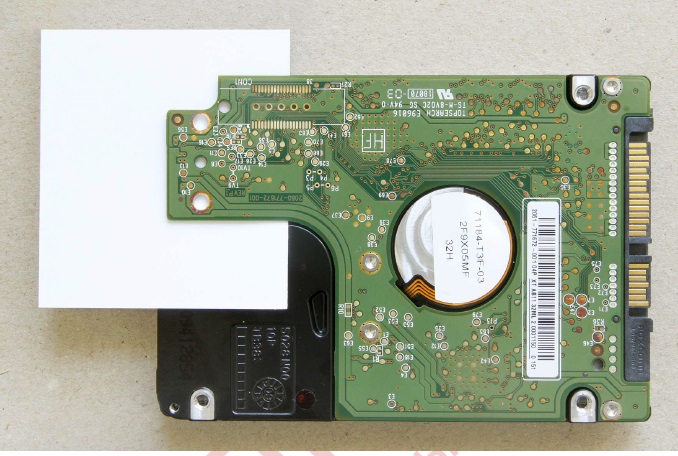
or short E47 PCB pin to the ground (tested on 2060-771961-000 REV P1). Status registers will be off, ID is not detected, but autodetect should work correct.
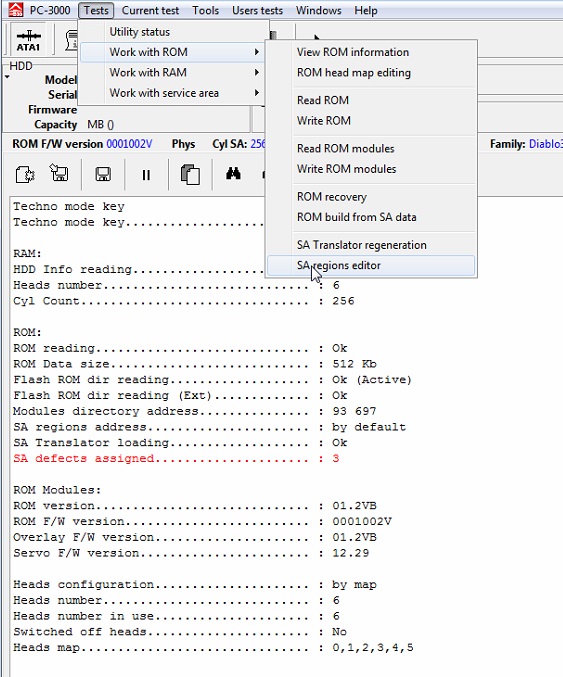
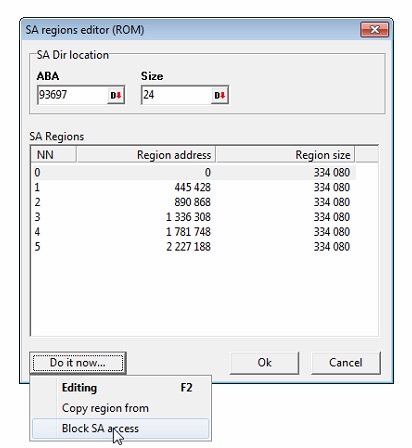
2. Follow Work with ROM->SA regions editor->Do it now.. button and Block SA access.
3. Power off the drive, remove the isolation.
4. Power the drive on.
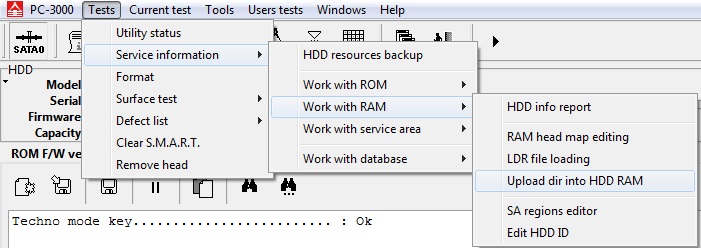
5. Start the utility in Kernel mode, load DIR into RAM using Work with RAM->Load DIR in RAM option.
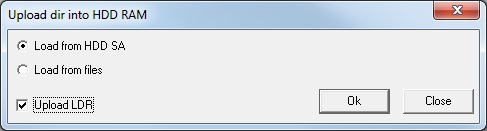
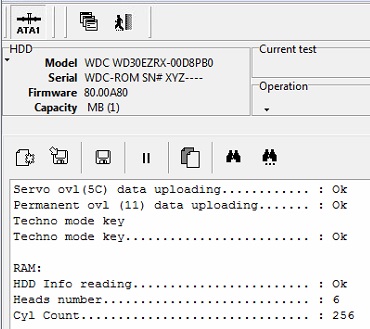
Exit from utility, start the utility in Normal mode.
6. Drive start with default -XYZ- in ID serial
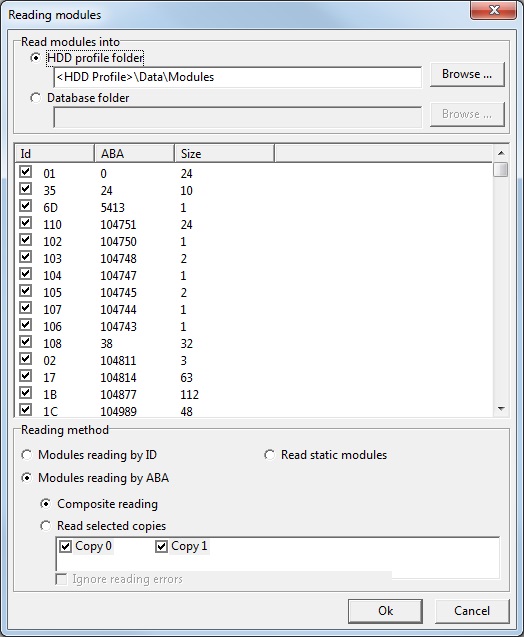
7. Save Service Area modules by ABA:
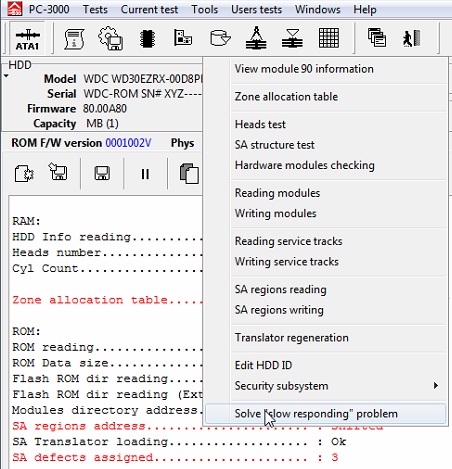
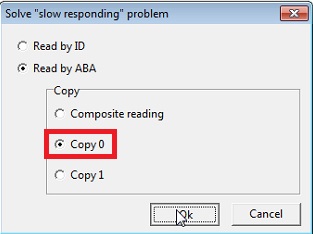
8. Follow Work with service area->Solve Slow responding problem, do it by ABA, by copy 0.

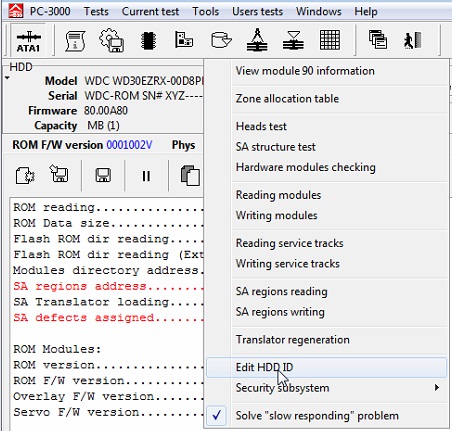
9. Follow Work with service area->Edit HDD ID,
go to Security subsystem tab, remove SED checkbox, press OK.
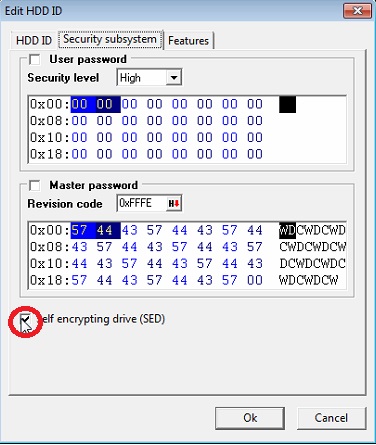
Do it by copy 0 only

10. Follow Work with ROM->SA regions editor->Allow SA access, press OK.

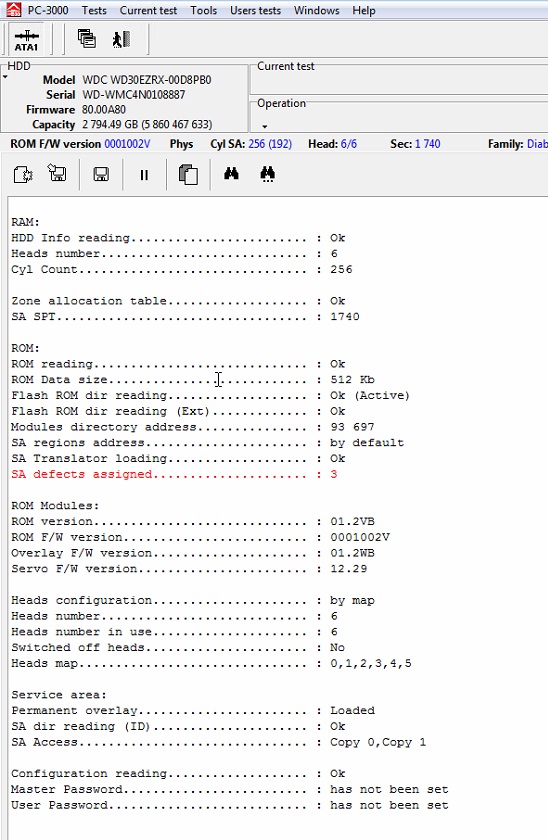
11. Power off\on the drive, enter in WDC Marvell utility, drive should start with full ID and SA access.
12. Open Tools->Sector edit. Data looks encrypted.
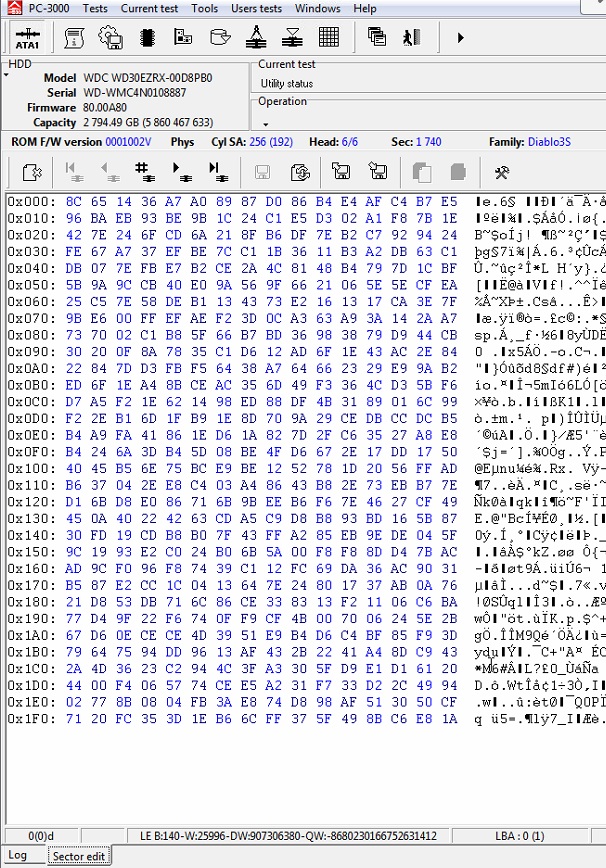
13. Follow Reading options
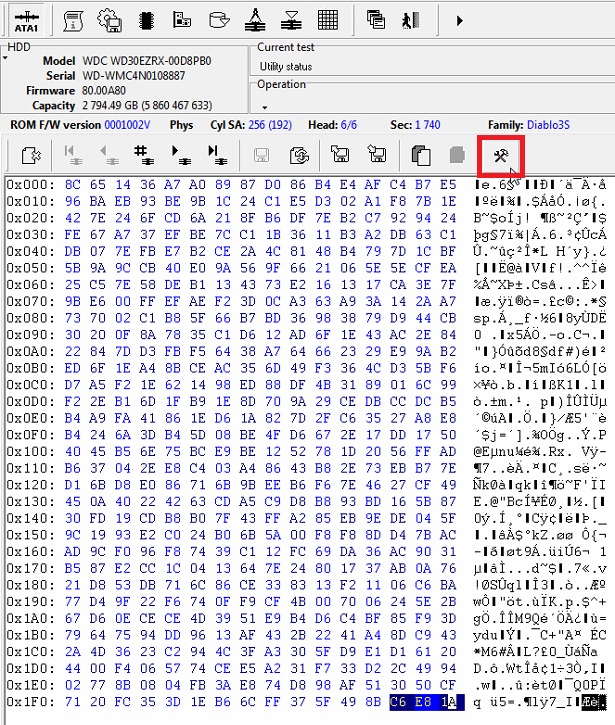
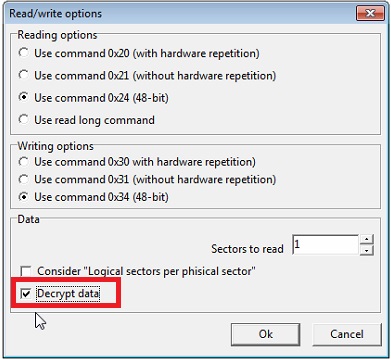
and set Decrypt data checkbox, press OK
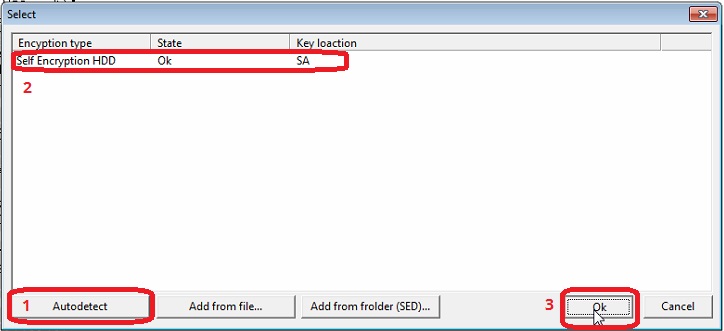
14. Autodetect the encryption type, choose Self encryption HDD and press OK.
15. Check if sectors are really decrypted in Sector edit.
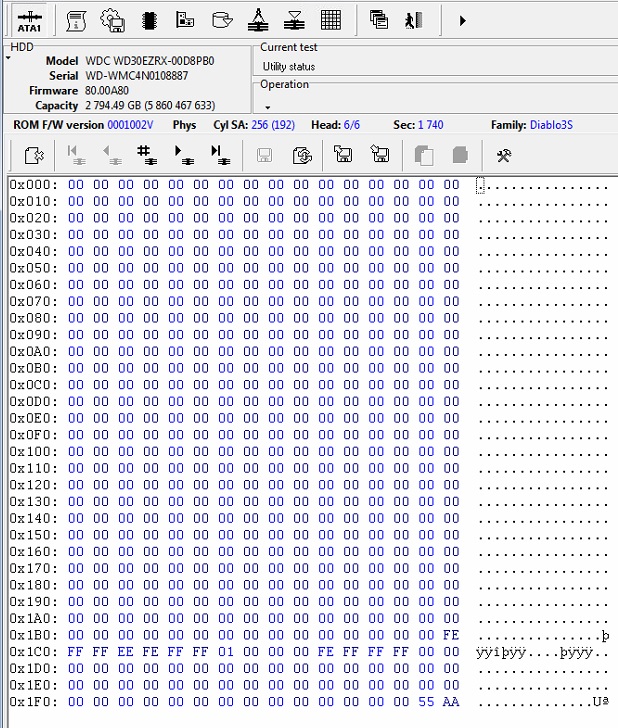
16. Create a task in Data Extractor, go to Settings->Command to read tab, choose Decrypt checkbox, repeat the actions with encryption type search.
17. Read the data.
1. Start the drive in Kernel mode: head isolation with connected spindle contacts
or short E47 PCB pin to the ground (tested on 2060-771961-000 REV P1). Status registers will be off, ID is not detected, but autodetect should work correct.
2. Follow Work with ROM->SA regions editor->Do it now.. button and Block SA access.
3. Power off the drive, remove the isolation.
4. Power the drive on.
5. Start the utility in Kernel mode, load DIR into RAM using Work with RAM->Load DIR in RAM option.
Exit from utility, start the utility in Normal mode.
6. Drive start with default -XYZ- in ID serial
7. Save Service Area modules by ABA:
8. Follow Work with service area->Solve Slow responding problem, do it by ABA, by copy 0.
9. Follow Work with service area->Edit HDD ID,
go to Security subsystem tab, remove SED checkbox, press OK.
Do it by copy 0 only
10. Follow Work with ROM->SA regions editor->Allow SA access, press OK.
11. Power off\on the drive, enter in WDC Marvell utility, drive should start with full ID and SA access.
12. Open Tools->Sector edit. Data looks encrypted.
13. Follow Reading options
and set Decrypt data checkbox, press OK
14. Autodetect the encryption type, choose Self encryption HDD and press OK.
15. Check if sectors are really decrypted in Sector edit.
16. Create a task in Data Extractor, go to Settings->Command to read tab, choose Decrypt checkbox, repeat the actions with encryption type search.
17. Read the data.


